Posts

How to use ActiveRecord has_and_belongs_to_many (HABTM) association in Rails

When building an application in Rails, often when we need to create relationship between objects, we'll try look for the correct association that we can use based on our own use case. One of the association is  has_and_belongs_to_many , a.k.a HABTM (yep, that acronym exists!). While many articles talks about why one should never use HABTM in place of the has_many..., but I think there's a place for HABTM, in my case, I intend to keep my application small and simple. Let's assume I have a 2 models, " Programmer " and " Project ", a programmer can work on many projects, and a project can have many programmers (obviously right?). To do this in Rails, I took the following steps. Generate the migration file rails g migration CreateJoinTableProgrammerProject programmer project This would generate a migration file like the following: class CreateJoinTableProgrammerProject < ActiveRecord :: Migration def change create_join_table : pro...

Getting OAuth 2.0 Access Token for Google AdWords API access

Image
Accessing AdWords data via the Google AdWords API can be confusing and complicated, especially with the way Google Services API OAuth works. In order to access AdWords via API, you'll (or your codes)  need to be authenticate via through OAuth 2.0. This guide is focusing on getting the OAuth Access token so that you can call the API from your codes. To do this, we'll first need to create a credential to access the API. API credentials are manage with Google Developer Console. Create New Client ID using  Google Developers Console . (See the steps here https://developers.google.com/adwords/api/docs/guides/authentication - Create a client identifier and client secret) During the step #7 choose Web application and enter  "https://developers.google.com" in AUTHORIZED JAVASCRIPT ORIGINS  "https://developers.google.com/oauthplayground" in AUTHORIZED REDIRECT URIS Save and you will see the Client ID being created as below Next, we're going ...

Sign-in automatically to Windows 8.1 without entering password

Image
Every time Windows boot, I'm required to enter a password to logon to the Windows, while this is great security feature, though sometime I want the system just boot to desktop without any password. Why? you ask, well just pure laziness I guess, and it's just a media server where I want to set this. I wanted to just press the power button of my PC, and the media server should just be ready. But because the media server service (Plex Media Server) required user to logon to Windows first before it starts itself on the system tray. So here's the steps to set your Windows 8.1 PC to boot to Windows without any password. 1. Enter "control userpasswords2" in the Run menu (Win + R key), and press Enter. 2. Uncheck " Users must enter a user name and password to user this computer. ", enter your password when prompted. Now try reboot the PC.

OneNote: We need the password to sync this notebook (Error code: 0xE4010643)

Image
It happen to me once and it happen to me twice, and it happen again this morning. When I saw this message, I knew no mater how many times I hit the "Sync All" it will never goes through (but I did it anyway). I found these happen to me if I leave OneNote open, and put the computer to hibernate / sleep mode. Somehow when the computer awake from sleep, OneNote will failed to sync due to the credentials is out of sync.  To avoid this I always close OneNote before putting the computer to sleep and often I simple shutdown the computer. The fix to this is simply delete the cached credential used by OneNote to connect to server for synchronization, and re-login. To do this, follow the following steps ( Make sure you close OneNote before you proceed) : Go to "Control Panel" > "User Accounts and Family Safety" Click "Credential Manager" Click "Manage Windows Credentials" Look for "MicrosoftOffice15_Data:live:c...

Express.JS quick-start guide on Windows

Image
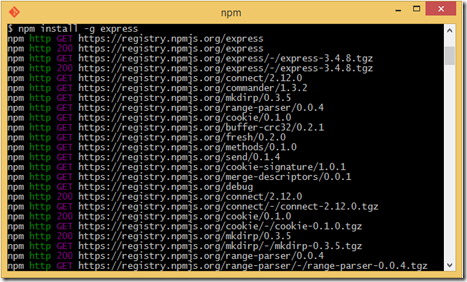
  Express.JS is a fairly new but increasingly popular Node framework for building web application. Being a Node based application means you spin up a web application in just few steps. In this guide, I’m going to show a quick-start on just how to do this on Windows. Install node.js. See this tutorial if you don’t already have node.js on your Windows. I’m using node v0.10.25, and express 3.4.8 on this guide. Create a directory for your new Express.JS app, run Command Prompt and cd into the directory. e.g. c:\users\<user name>\projects\fooApp Install express.js via npm ‘Node Package Manager’ that comes together with node. In the Command Prompt, execute: npm install –g express Watch and wait for npm to complete fetching the required dependencies for express.js. It’s going to take a while. Once installation completed, you will be presented with a summary of what packages has been downloaded and it’s respective version. Verify the Express.JS is installed and check ...

Installing and upgrading node.js on Windows

Image
Steps for installation: Go to http://nodejs.org/ and download the latest version of node.   I'll proceed with the Windows Installer (.msi) version. You can also go to http://nodejs.org/download/ to download installer for other platform. Run the node-XXXXXXXXXX.msi installer, and proceed to installation like a normal Windows application (basically just Next... , Agree, Next … Finish). I'd strongly suggest that you accepts all the default configurations and selections during the setup. Once installation completed, start a command prompt and type " node --version " and verify that it shows the version of node. Steps for upgrade: I personally don't use any special tools to switch between version of nodes,   I prefer install if using the same Windows Installer. (If you uses all the default settings during setup, upgrading is simple repeating the installation steps to over...

Generating INSERT statement from SELECT using SQuirreL SQL

Image
There are often time during development where you would want to test your application with various type of sample data, and you would want those data to be share with other team member as well. The scenario that I ran into recently is we have some sample data that was enter to a system through a web interface, and for reports developments purposes we need those data to be shared among the team members, so we start to look into exporting those data out using SQL SELECT statements (with the correct WHERE clause) then converting them to equivalent INSERT statement; there are of cause several ways to do this, but I prefer the easy way, using SQuirreL SQL . The insert script can them be shared among the team members. Following is the steps for completing this Install  SQuirreL SQL Make sure you have  JRE7  installed on your machine Create connection to you database Depending on your database type you need to use different drivers Create the Alias to your data...